1. 오늘 학습 목표
- 오늘은 그동안 했던 내용을 복습했으므로 개인적으로 나눠준 개인과제를 풀어보는 TIL을 작성하겠습니다.

2. 오늘 학습 한 내용
파이썬 라이브러리 개인과제 (저번에 이어서 2-1부터)
- 구글드라이브 마운트하기
from google.colab import drive
drive.mount('/content/drive') # 구글 드라이브 연결

import warnings
warnings.filterwarnings('ignore') # warning 무시
- 문제 2-1
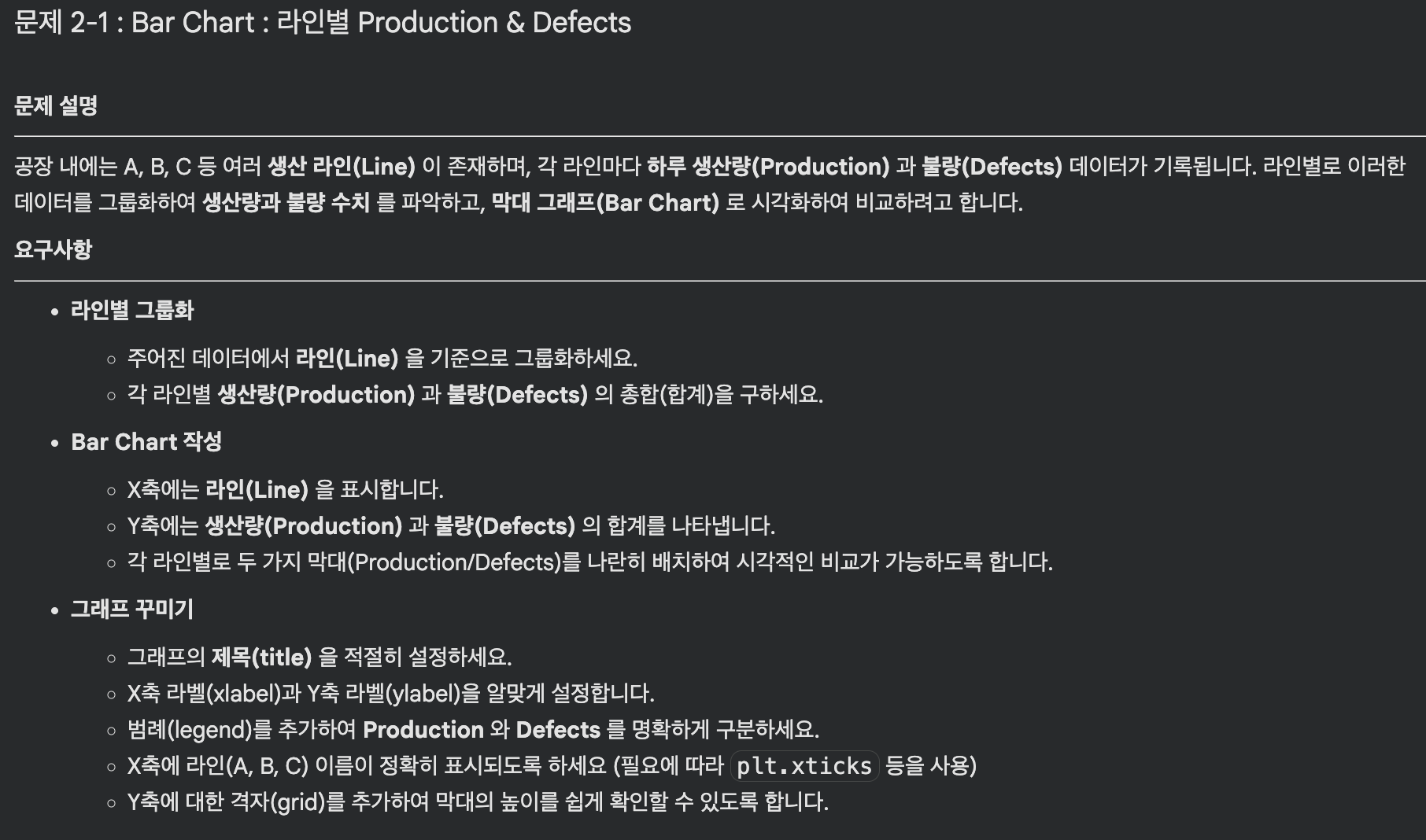
import pandas as pd
import matplotlib.pyplot as plt
import numpy as np

manu_path = '/content/drive/MyDrive/DataSet/manufacturing_data_400.csv' # manufacturing_data_400.csv 파일 경로 입력

df = pd.read_csv(manu_path)

df.head()

# 이상치 처리: Defects 값이 9999인 경우 결측치(NaN)로 변경
df["Defects"] = df["Defects"].replace(9999, np.nan)
df.head() #결과확인
df["Defects"].isna().sum() #결측치 개수 확인

# 라인별 합계
grouped = df.groupby('Line')[['Production', 'Defects']].sum() #Line별 생산, 결함 합계 계산
grouped #결과 확인

# 바로 bar 차트
grouped.plot(kind="bar", figsize=(10,6))

# 빈칸을 채워 코드를 완성하세요
plt.title('Total Production and Defects by Line') #그래프 제목
plt.xlabel('Line') #x축 이름
plt.ylabel('Total Count') #y축 이름
plt.xticks(rotation=0) #x축 이름 회전 0
plt.legend(['Production', 'Defects']) #범례
plt.grid(axis='y') #격자 y축으로 표시
plt.show() #결과 확인
- 문제 2-2

import pandas as pd
import matplotlib.pyplot as plt

# 데이터 불러오기
manu_path = '/content/drive/MyDrive/DataSet/manufacturing_data_400.csv' # manufacturing_data_400.csv 파일 경로 입력

df = pd.read_csv(manu_path)

df.head()

# 이상치 처리: Defects 값이 9999인 경우 결측치(NaN)로 변경
df['Defects'] = df['Defects'].replace(9999, np.nan)
df.head(3)

# 라인별 생산량 합계
grouped = df.groupby('Line')["Production"].sum()
grouped

# 바로 pie plot - Hint: autopct='%1.1f%%', figsize=(6,6), startangle=90
grouped.plot(kind="pie", autopct='%1.1f%%', figsize=(6,6), startangle=90) #colors = ['#66b3ff', '#99ff99', '#ffcc99'] 문제엔 색상조건이 있지만 예시와 같게 하기 위해 기본 색상 사용

# 빈칸을 채워 코드를 완성하세요
plt.title("Percentage of Production by Line")
plt.ylabel("")  # 불필요한 y라벨 제거
plt.show() #결과 확인
문제 2-3.
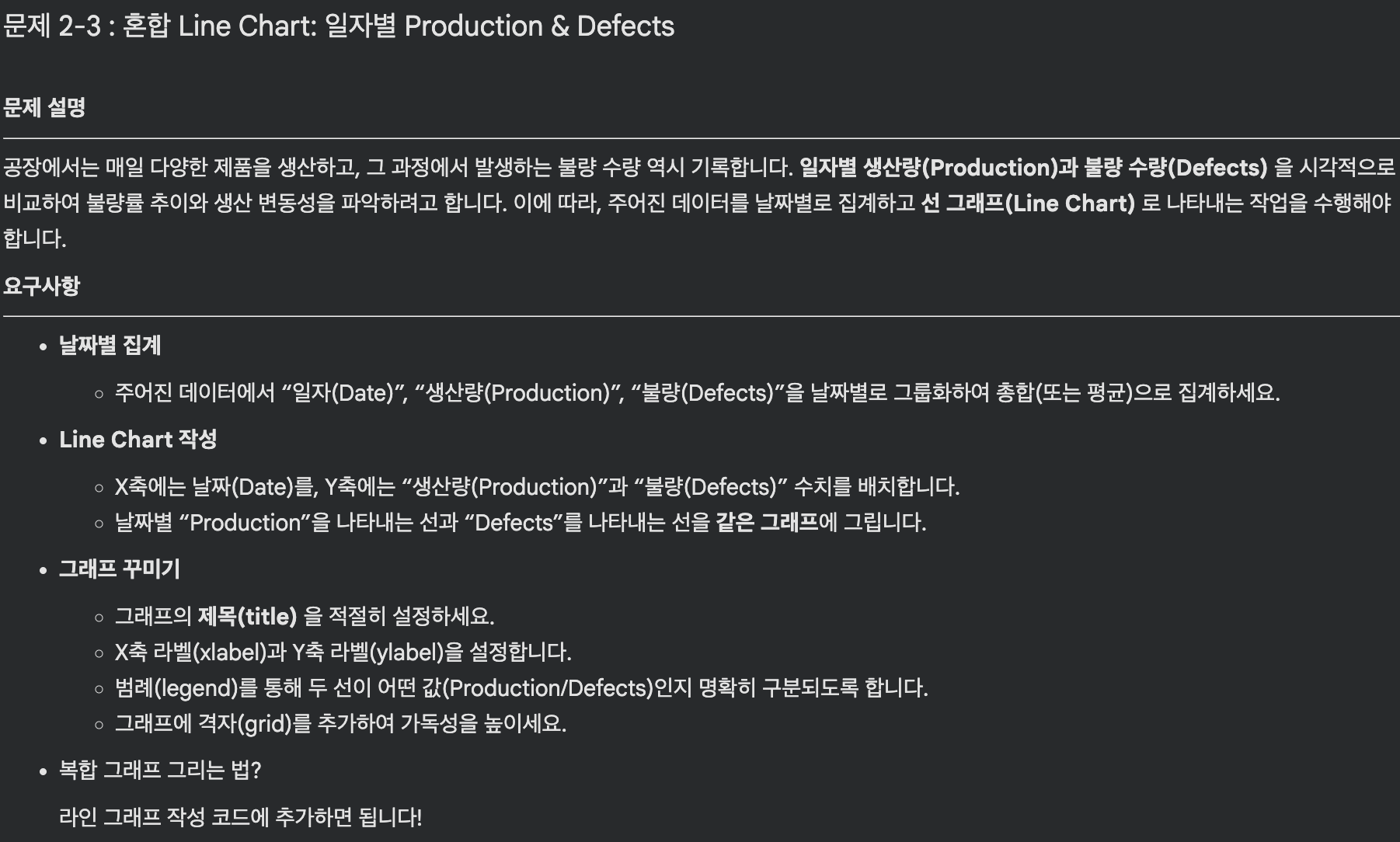
import pandas as pd
import matplotlib.pyplot as plt

manu_path = '/content/drive/MyDrive/DataSet/manufacturing_data_400.csv' # manufacturing_data_400.csv 파일 경로 입력

df = pd.read_csv(manu_path)

df.head()

# 이상치 처리: Defects 값이 9999인 경우 결측치(NaN)로 변경
df['Defects'] = df['Defects'].replace(9999, np.nan)
df.head(3)

# 날짜별 집계
grouped = df.groupby('Date')[['Production', 'Defects']].sum() #날짜 기준으로 생산량과 결함 합계
grouped #결과 확인

# 바로 plot() / figsize=(10,6)
grouped.plot(kind="line", figsize=(10,6))
# 빈칸을 채워 코드를 완성하세요
plt.title("Daily Production and Defects") #제목 설정
plt.xlabel("Date") #x축 이름
plt.ylabel("Count") #y축 이름
plt.grid(axis='both') #격자 x,y둘다
plt.show() #결과 확인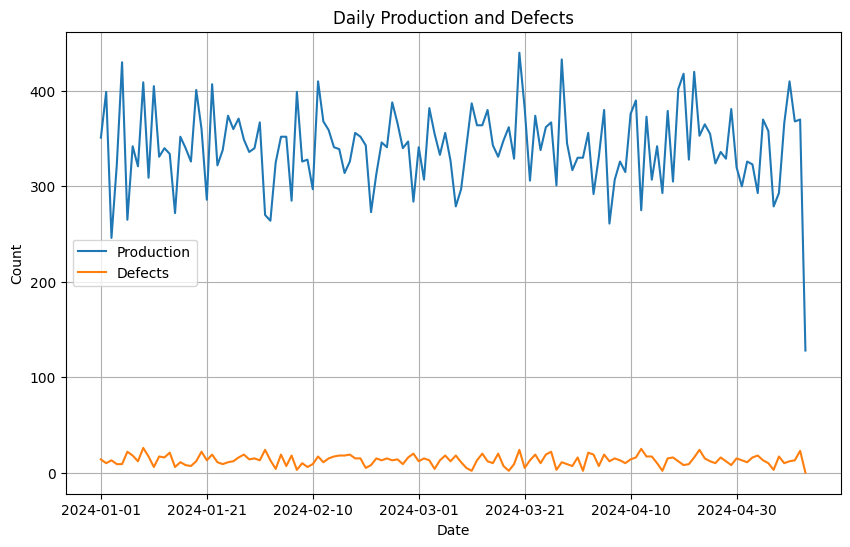
문제 2-4.

import matplotlib.pyplot as plt
import seaborn as sns
import pandas as pd

# CSV 파일 불러오기
manu_path = '/content/drive/MyDrive/DataSet/manufacturing_data_400.csv' # manufacturing_data_400.csv 파일 경로 입력

df = pd.read_csv(manu_path) # 파일명은 실제 파일 경로에 맞게 수정

df.head()

# Boxplot 작성
plt.figure(figsize=(10, 6))
sns.boxplot(x='Line', y='Temperature', data=df)  # x='Line', y='Temperature', data=df

# 빈칸을 채워 코드를 완성하세요
plt.title('Temperature Distribution by Line')       # 'Temperature Distribution by Line'
plt.xlabel('Production Line')      # 'Production Line'
plt.ylabel('Temperature')      # 'Temperature'
plt.grid(True)

# 그래프 표시
plt.show()
문제 2-5.
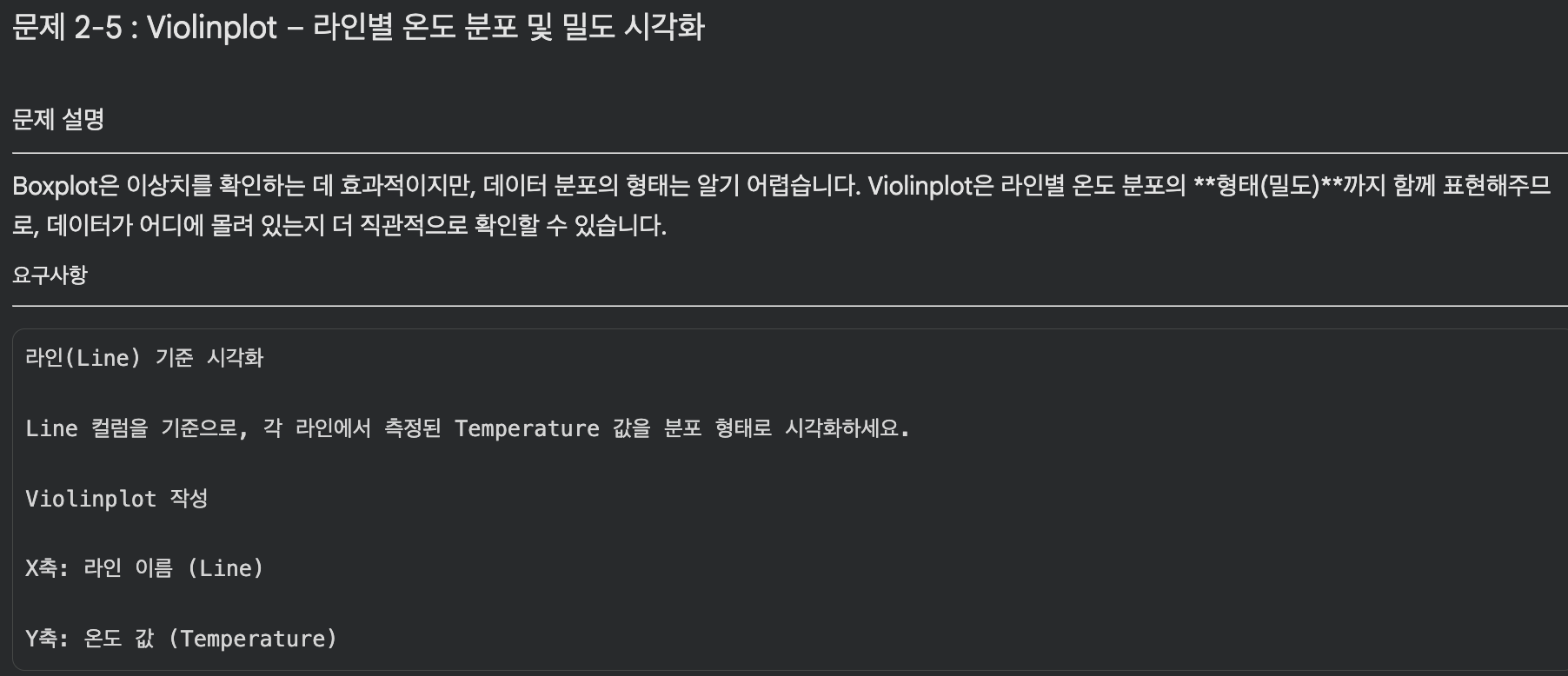
# 라이브러리 불러오기
import matplotlib.pyplot as plt
import seaborn as sns
import pandas as pd

# 데이터 불러오기
manu_path = '/content/drive/MyDrive/DataSet/manufacturing_data_400.csv' # manufacturing_data_400.csv 파일 경로 입력

df = pd.read_csv(manu_path) # 파일명은 실제 파일 경로에 맞게 수정

df.head()

# Violinplot 작성
plt.figure(figsize=(10, 6))
sns.violinplot(x='Line', y='Temperature', data=df)

plt.title('Temperature Distribution by Line (Violin Plot)')
plt.xlabel('Production Line')
plt.ylabel('Temperature')
plt.grid(True)

# 그래프 표시
plt.show()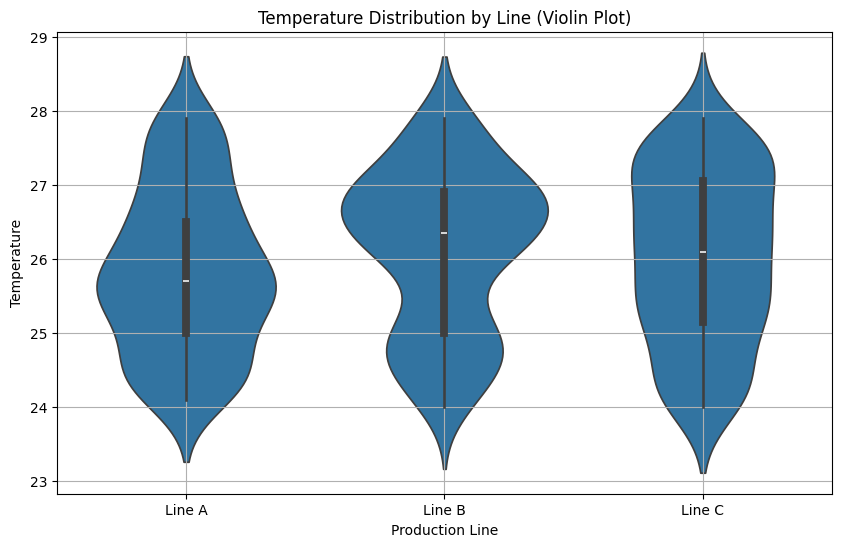
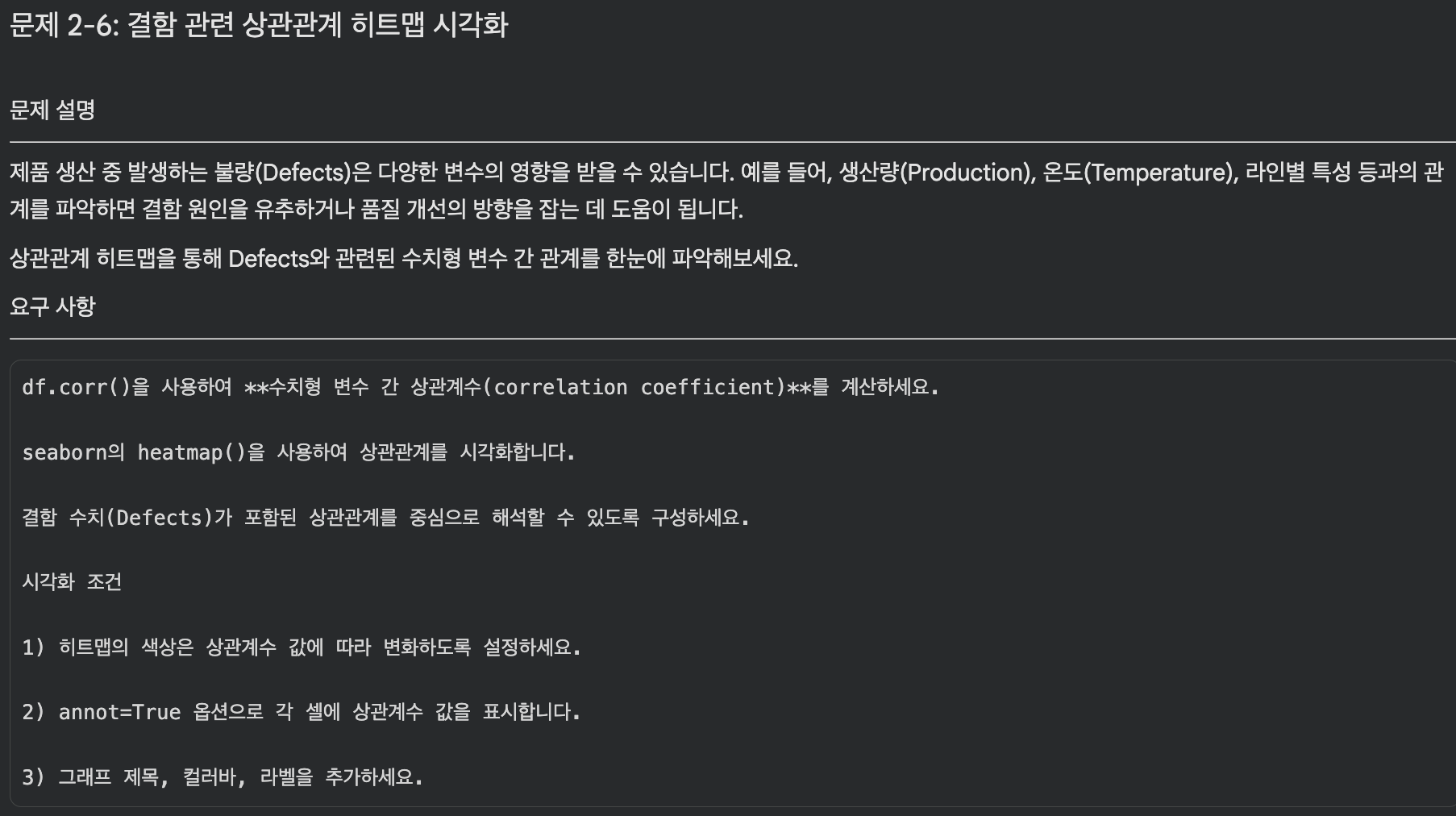
문제 2-6.
# 라이브러리 불러오기
import pandas as pd
import seaborn as sns
import matplotlib.pyplot as plt

# CSV 파일 불러오기
manu_path = '/content/drive/MyDrive/DataSet/manufacturing_data_400.csv' # manufacturing_data_400.csv 파일 경로 입력

df = pd.read_csv(manu_path) # 파일명은 실제 파일 경로에 맞게 수정

df.head()

# 상관계수 행렬 계산
# df['Defects'] = df['Defects'].replace(9999, np.nan)  # 더 정확한 값을 위해 이상치 9999를 결측치로 변경하려했지만 예시 이미지와 같은 결과를 재현하기 위해 해당 코드는 생략함.
corr_matrix = df.corr(numeric_only=True)
corr_matrix

# 히트맵 시각화
plt.figure(figsize=(10, 8)) #그래프 크기
sns.heatmap(corr_matrix, annot=True, cmap='coolwarm', fmt=".2f") #상관계수 행렬을 히트맵으로 시각화

plt.title('Correlation Heatmap: Defects vs Other Variables') #그래프 제목
# plt.xlabel('Features') #밑에 예시와 같게 하기 위해 생략
# plt.ylabel('Features') #밑에 예시와 같게 하기 위해 생략
plt.show() #그래프 출력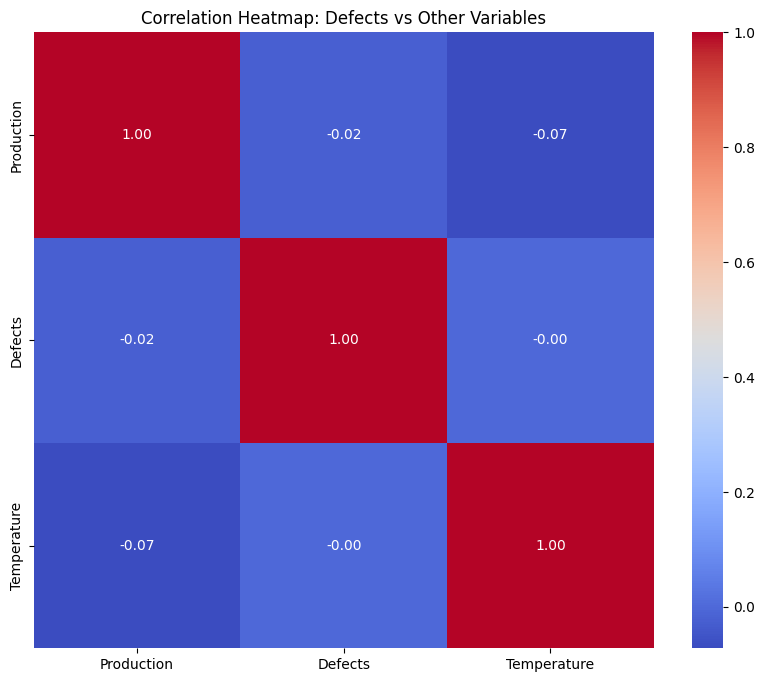
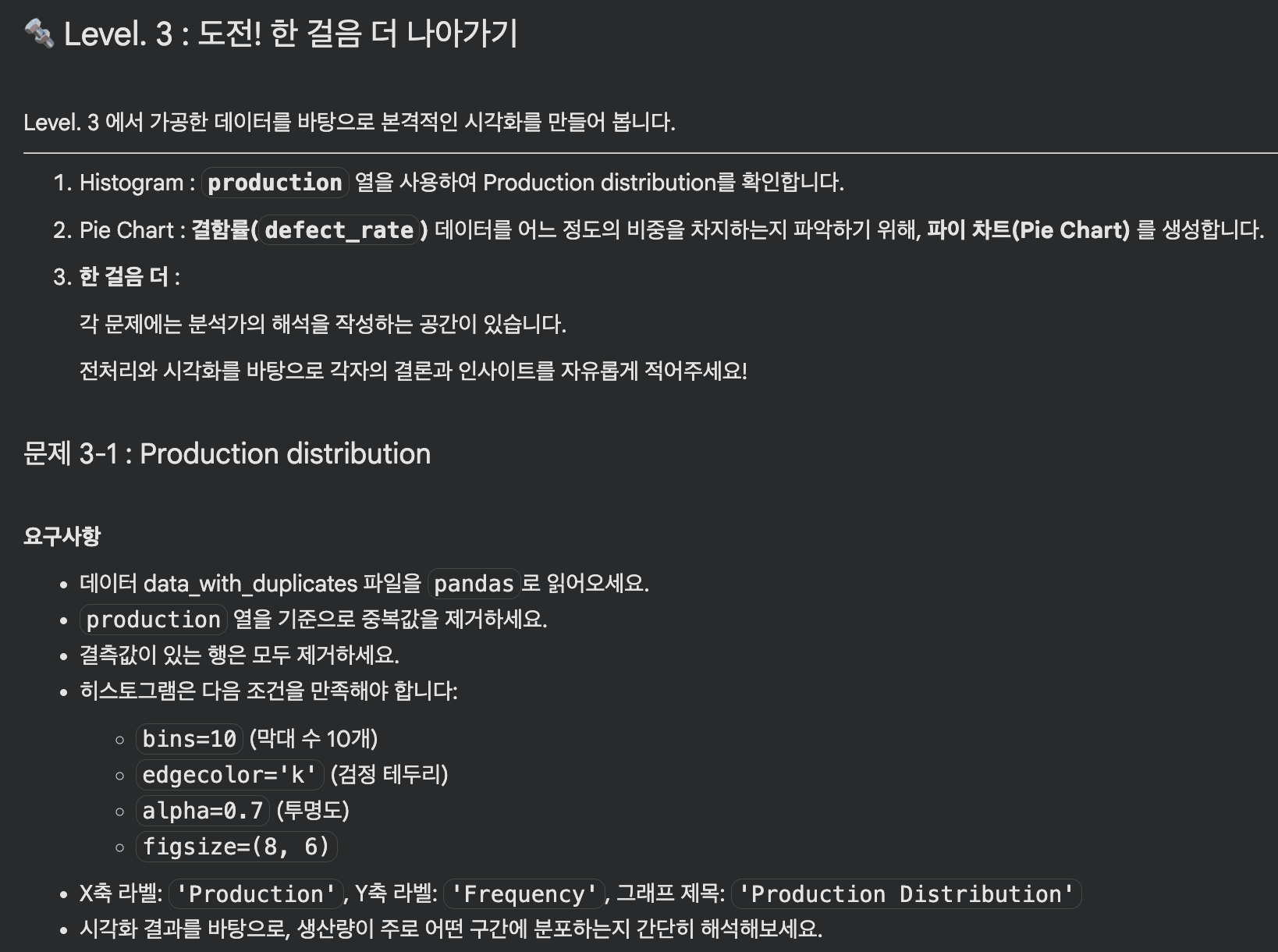
문제 3-1.
# 라이브러리 불러오기
import matplotlib.pyplot as plt
import pandas as pd

# CSV 파일 불러오기
duplicates_path = '/content/drive/MyDrive/DataSet/data_with_duplicates.csv' # data_with_duplicates.csv 파일 경로 입력

df = pd.read_csv(duplicates_path)  # 파일 경로에 맞게 조정하세요

df.head(10) #상위 10개 결과 확인

df.isna().sum().sum()  # 전체 데이터의 결측치 총개수

df.duplicated(subset=["production"]).sum()  # production 기준 중복 개수

# 중복 제거
drop_duplicates = df.drop_duplicates(subset=["production"]) # <== production 열을 기준으로 중복값을 제거하세요.
drop_duplicates.duplicated(subset=["production"]).sum()  # 중복 제거 후 production 기준 중복 개수

# 결측값 제거
data_cleaned = drop_duplicates.dropna()  # 중복 제거된 데이터에서 결측치 제거

data_cleaned.isna().sum()  # 결측치 제거 후 결측치 개수 확인

# 히스토그램 시각화
plt.figure(figsize=(8, 6))

# Production Histogram
plt.hist(data_cleaned['production'] , bins=10, edgecolor='k', alpha=0.7)

plt.xlabel('Production')
plt.ylabel('Frequency')
plt.title('Production Distribution')
plt.show()

# 분석가의 해석
## 중복값과 결측값을 제거한 후 production 분포를 확인한 결과, 생산량은 대체로 1000~1050 구간에 집중되어 있다.
## 1200대 중반의 생산량도 일부 존재하지만 빈도는 낮아서 전체적으로는 낮은 생산량 구간에 데이터가 많이 몰려 있다고 볼 수 있다.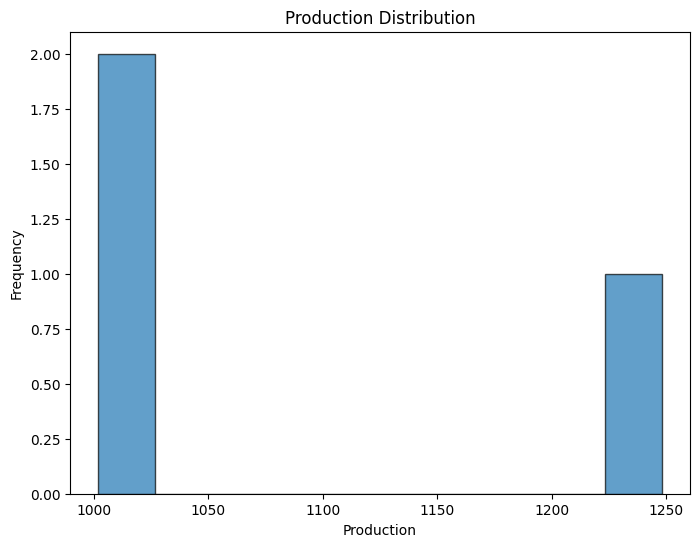
문제 3-2.
# 구간(binning)과 라벨 설정
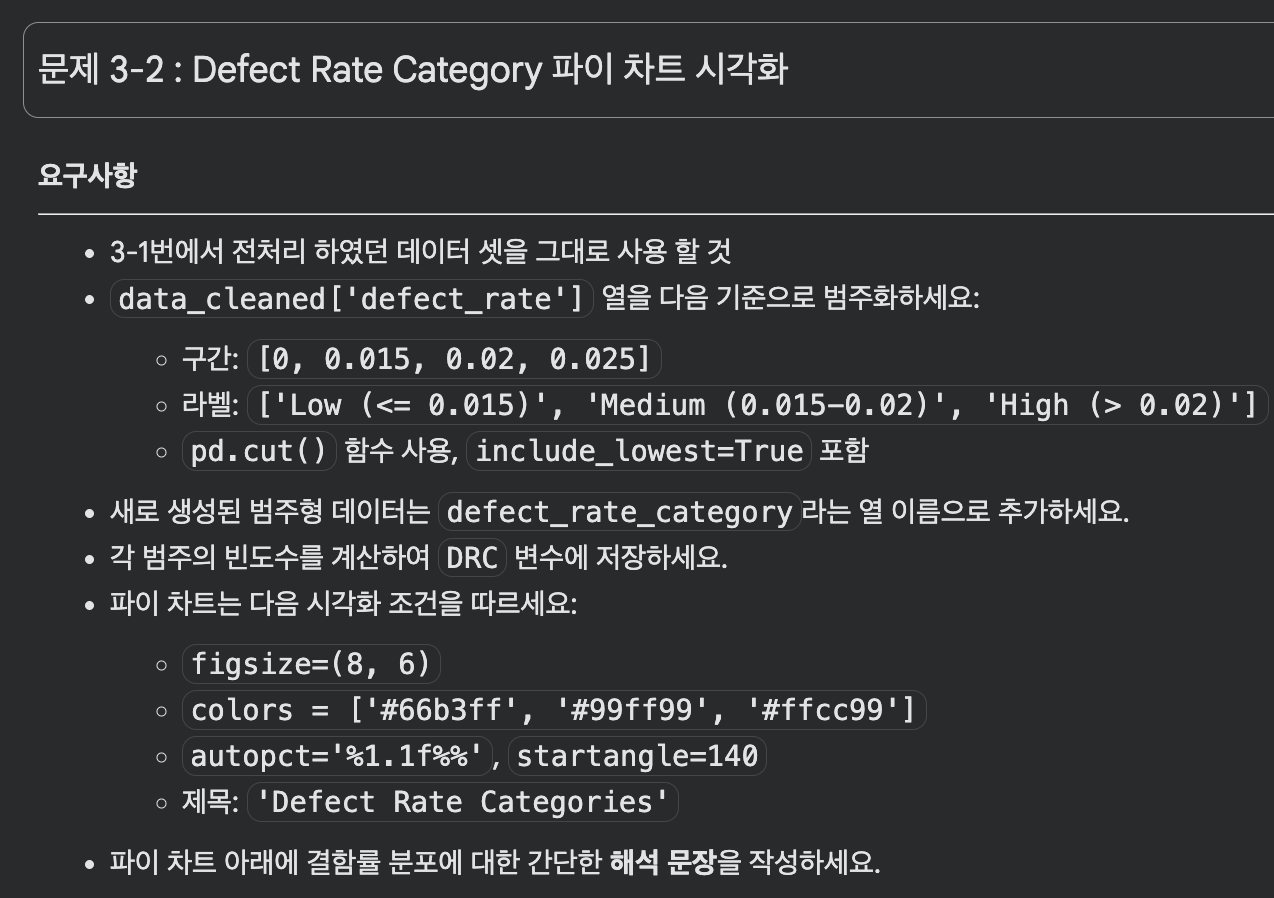
bins = [0, 0.015, 0.02, 0.025]
labels = ['Low (<= 0.015)', 'Medium (0.015-0.02)', 'High (> 0.02)']

# 결함률 데이터를 범주화하여 새로운 컬럼 생성
# pd.cut()을 사용하여 범주화 (include_lowest=True 포함)
data_cleaned['defect_rate_category'] = pd.cut(
    data_cleaned['defect_rate'], #범주화할 컬럼
    bins=bins,
    labels=labels,
    include_lowest=True #가장 낮은 값 포함시키기
)

data_cleaned.head()

# 각 범주의 빈도수 계산
DRC = data_cleaned['defect_rate_category'].value_counts()
DRC

# 파이 차트 시각화
plt.figure(figsize=(8, 6))
colors = ['#66b3ff', '#99ff99', '#ffcc99']

plt.pie(DRC, labels=DRC.index, colors=colors, autopct='%1.1f%%', startangle=140)

plt.title('Defect Rate Categories')
plt.axis('equal')  # 원형 유지
plt.show()

# 분석가의 해석
## 결함률을 Low, Medium, High 세 구간으로 나누어 확인한 결과, 세 범주가 각각 동일한 비율로 나타났다.
## 전처리 후 남은 데이터 기준으로는 특정 결함률 구간에 데이터가 집중되었다고 보기 어렵고, Low, Medium, High가 균등하게 분포하고 있다.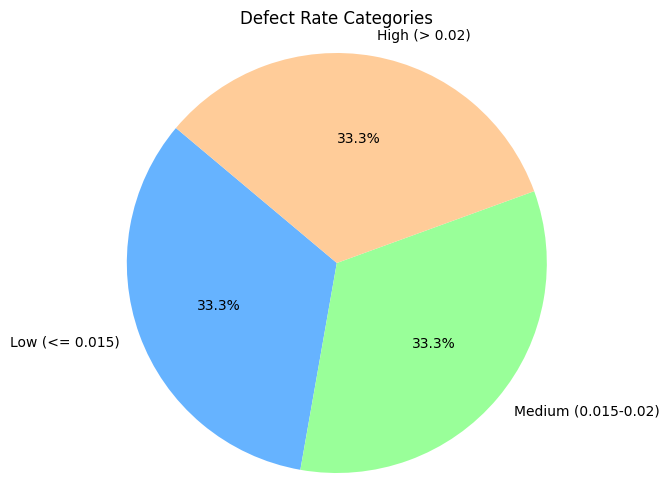
나의 간단 소감
- 오늘은 그동안 배운 라이브러리들을 복습하면서 개인과제를 풀어보는 시간을 가졌다. 사실 새로운 개념을 배우는 날보다, 이렇게 직접 문제를 풀어보는 날이 더 어렵게 느껴진다. 수업을 들을 때는 이해한 것 같아도 막상 혼자 코드를 작성하려고 하면 “이걸 어디서부터 시작해야 하지?”라는 생각이 먼저 든다.
이번 과제에서는 제조 데이터를 불러오고, 이상치와 결측치를 처리한 뒤 라인별 생산량과 결함 수, 날짜별 추이, 온도 분포, 상관관계 등을 그래프로 확인했다. 단순히 그래프를 그리는 것보다 중요한 건, 데이터를 어떤 기준으로 묶고 어떤 그래프로 보여줄지 정하는 과정이라는 점이 다시 느껴진다.
특히 groupby()로 라인별 데이터를 묶거나, replace()로 이상치를 결측치로 바꾸고, drop_duplicates()와 dropna()로 데이터를 정리하는 과정이 중요하게 보인다. 그래프는 마지막 결과처럼 보이지만, 실제로는 그 전에 데이터를 어떻게 정리했는지가 훨씬 중요하다. 데이터가 제대로 정리되지 않으면 그래프도 결국 잘못된 방향으로 해석될 수 있기 때문이다.
또한 막대 그래프, 파이 차트, 선 그래프, 박스 플롯, 바이올린 플롯, 히트맵을 각각 사용해보면서 그래프마다 역할이 다르다는 것도 다시 확인할 수 있다. 생산량 비교에는 막대 그래프, 비율 확인에는 파이 차트, 날짜별 변화에는 선 그래프, 분포 확인에는 박스 플롯과 바이올린 플롯, 변수 간 관계 확인에는 히트맵이 잘 어울린다.
아직은 코드가 한 번에 딱 떠오르지는 않지만, 문제를 풀면서 어떤 순서로 접근해야 하는지는 조금씩 익숙해지고 있다. 앞으로 QA/QC 데이터를 다룰 때도 데이터를 먼저 확인하고, 필요한 전처리를 한 뒤, 목적에 맞는 그래프를 선택하는 흐름을 계속 연습해야겠다. 결국 데이터 분석은 코드를 많이 아는 것도 중요하지만, 데이터를 보고 어떤 질문을 던질지 생각하는 힘이 더 중요하다는 생각이 든다.
'내일배움캠프' 카테고리의 다른 글
| [본캠프] 데이터기반 QA/QC 부트캠프 20일차 (0) | 2026.06.09 |
|---|---|
| [본캠프] 데이터기반 QA/QC 부트캠프 19일차 (0) | 2026.06.08 |
| [본캠프] 데이터기반 QA/QC 부트캠프 17일차 (0) | 2026.06.04 |
| [본캠프] 데이터기반 QA/QC 부트캠프 16일차 (1) | 2026.06.02 |
| [본캠프] 데이터기반 QA/QC 부트캠프 15일차 (0) | 2026.06.01 |